
Active Directory Attack Path Lab
Setting up a multi-host Active Directory environment using VMWare Workstation and Windows 10.
On This Page
- Why Build a Home Lab?
- Lab Overview
- Setting up the Virtual Machines
- Initial Configuration: Networking and Basics
- Setting up the Domain Controller
- Setting up Users, Groups, and Policies
- Joining Machines to the Domain
- Final Thoughts
Why Build a Home Lab?
One of the biggest challenges when learning offensive security is access. You need systems that are intentionally vulnerable and, just as important, systems you are actually allowed to test. Platforms like Hack The Box, TryHackMe, OffSec, and VulnHub do a great job filling that gap. They offer a wide range of machines and guided environments that are invaluable when you are getting started or trying to sharpen a specific skill.
That said, many of these labs are designed around a single host or a single attack path. The more complex environments, the ones that simulate real enterprise networks, are often part of paid tiers.
For example, Hack The Box offers Pro Labs, which are designed to mirror real-world enterprise environments with multiple machines, segmented networks, and domain controllers. I worked through the Dante lab a while back and learned a ton. It is labeled “Easy,” but it definitely did not feel that way at the time. It exposed some gaps in my understanding, especially around buffer overflows, which is something I plan to revisit more deeply.
The value of these platforms is undeniable, but the cost can add up quickly. Pro Labs alone run around $50 per month, on top of a standard subscription. That is a reasonable investment for many people, but it is not the only option.
With a bit of time and setup, you can build your own multi-host Active Directory lab at home for free. It will not only save money, but it also gives you full control over the environment. You decide how it is configured, how it breaks, and how it gets rebuilt.
Lab Overview
In this guide, I will walk through how to set up a small Active Directory environment from scratch. The lab will include one domain controller and two client machines. We will cover everything from obtaining the necessary installation media to configuring the domain and creating users.
By the end, you will have a working multi-host environment that you can use to practice common Active Directory attack paths, test vulnerabilities in native services, and experiment without restrictions.
You will need:
- VMWare Workstation Pro (or other hypervisor of your choice)
- Windows Server 2022
- Windows 10 Enterprise
System Requirements
This lab uses three virtual machines. You do not need to run all of them at the same time, but you should plan on running at least two concurrently. You can power systems on and off as needed depending on what you are working on. Below are the general requirements for each component.
VMware Workstation Pro
- 64-bit x86 or AMD64 CPU released in 2011 or later
- Windows or Linux host operating system
- Minimum 2 GB RAM, 4 GB or more recommended
- Display adapter with up-to-date drivers
- Around 2.5 GB disk space for installation, plus at least 1 GB per virtual machine
Windows Server 2022
- 1.4 GHz 64-bit processor with SLAT support
- 512 MB RAM for Server Core or 2 GB for Desktop Experience
- 32 GB available disk space
For more realistic performance, Microsoft recommends at least 2 CPU cores at 2.0 GHz or higher, 4 to 8 GB of RAM, and SSD storage.
Windows 10 Enterprise
- 1 GHz processor
- 1 GB RAM for 32-bit or 2 GB for 64-bit
- 16 GB disk space for 32-bit or 20 GB for 64-bit
This setup gives you a flexible environment that closely resembles what you will encounter in real-world networks. More importantly, it is yours to break, rebuild, and experiment with as much as you want.
Setting up the Virtual Machines (VMs)
Before we can start building out our Active Directory environment, we need to create the virtual machines that will host it.
In this section, we will:
- Create three virtual machines
- Install the operating systems
- Apply basic configurations that will make later steps much smoother
We will be creating (we will be changing the names at a later step):
- DC01 (Domain Controller) running Windows Server 2022
- MS01 (Client Machine) running Windows 10 Enterprise
- MS02 (Client Machine) running Windows 10 Enterprise
Creating the Domain Controller (DC01)
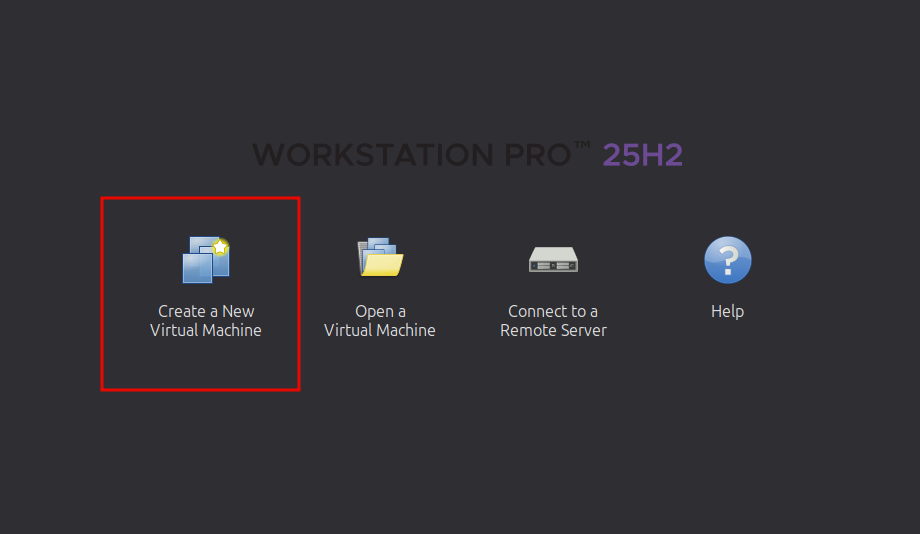
Open VMware Workstation Pro and select Create a New Virtual Machine.
Choose Typical (recommended) and continue.
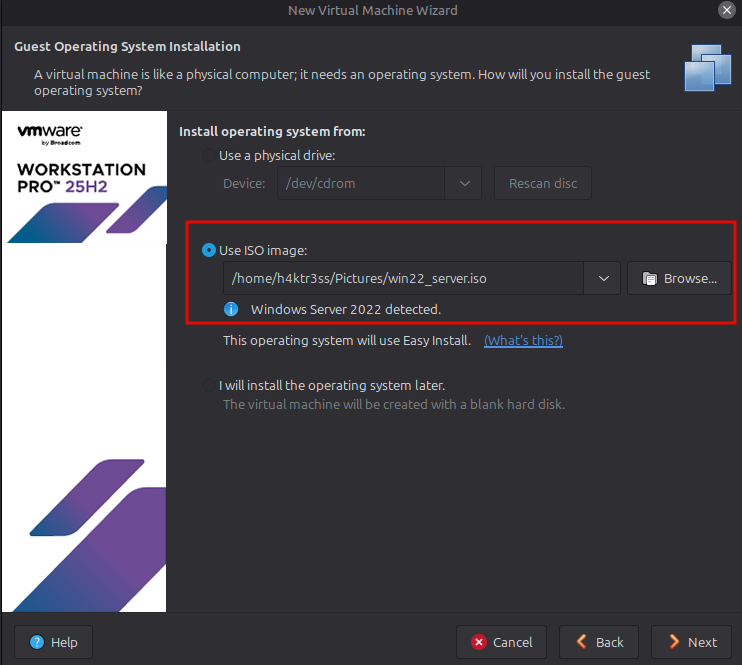
When prompted for installation media, select:
- Installer disc image file (ISO)
- Browse to your Windows Server 2022 ISO
Continue through the setup with the following recommended settings:
- Name: DC01
- Location: Your preferred lab directory
- Disk Size: 60 GB (single file is fine)
- Memory: 4 GB minimum (8 GB if your system can handle it)
- CPU: 2 cores
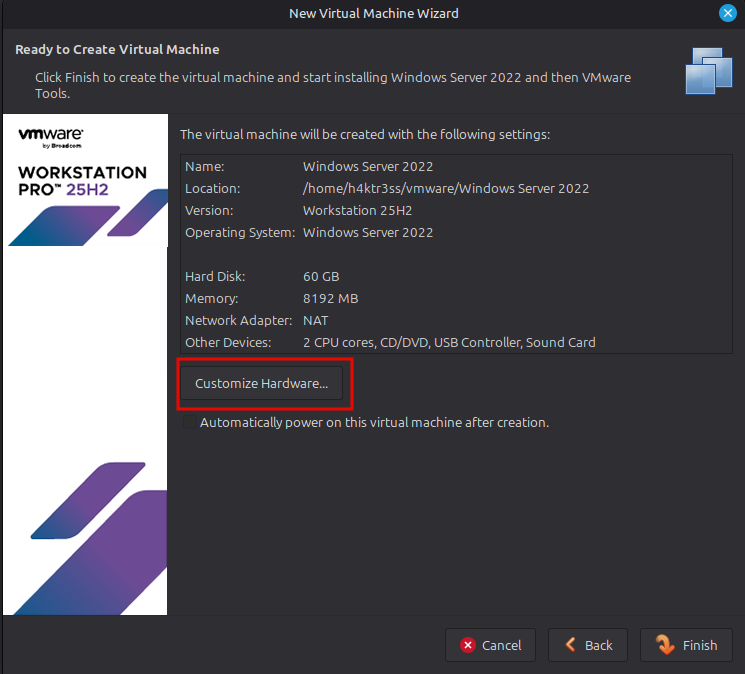
Before finishing, select Customize Hardware and confirm:
- Network Adapter is set to NAT (we will adjust networking later if needed)
- ISO is attached
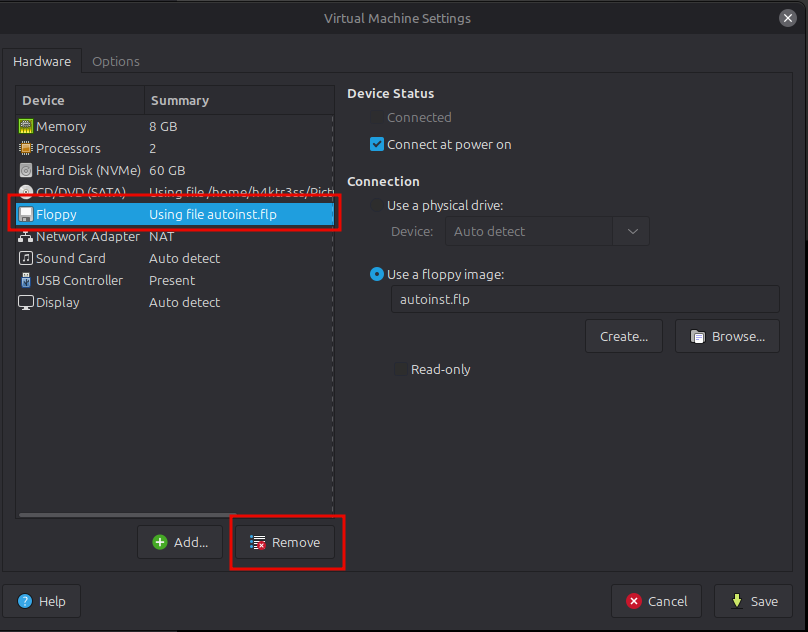
- If you see an option for a Floppy, select the option and click "Remove."
Finish the wizard and power on the VM.
Installing Windows Server 2022
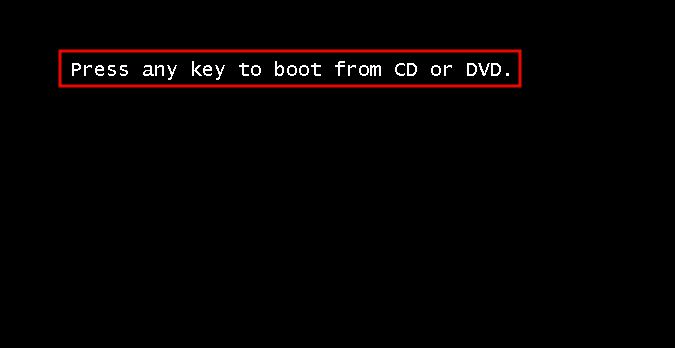
Once the VM boots, the Windows installer will launch. You will see text that says "Press any key to boot from CD or DVD." Make sure you press a kay here or you will need to restart the VM. I genuinely do not know why.
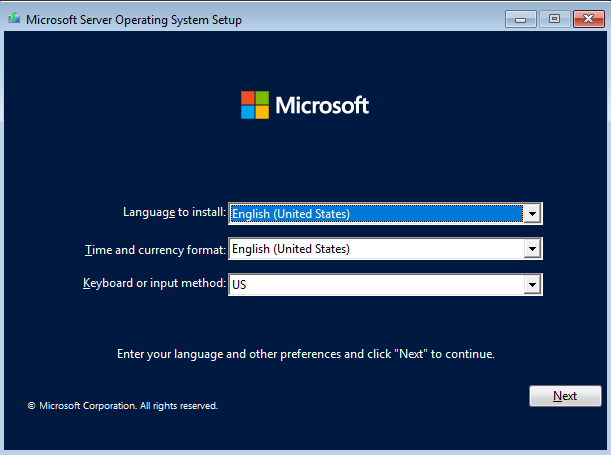
Select your language and keyboard settings, then click Install Now.
When prompted, choose Windows Server 2022 Standard (Desktop Experience)
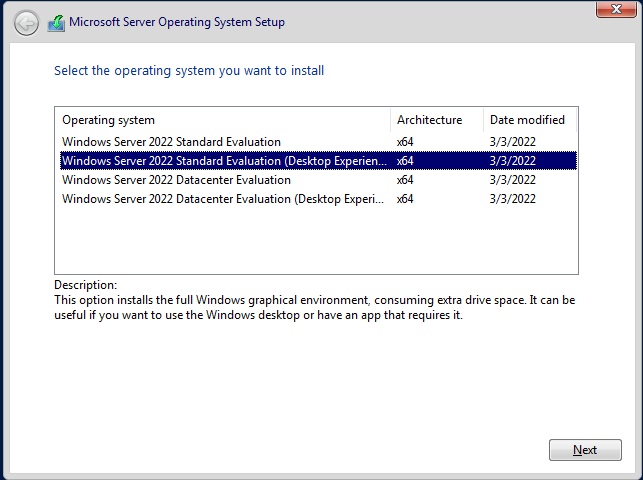
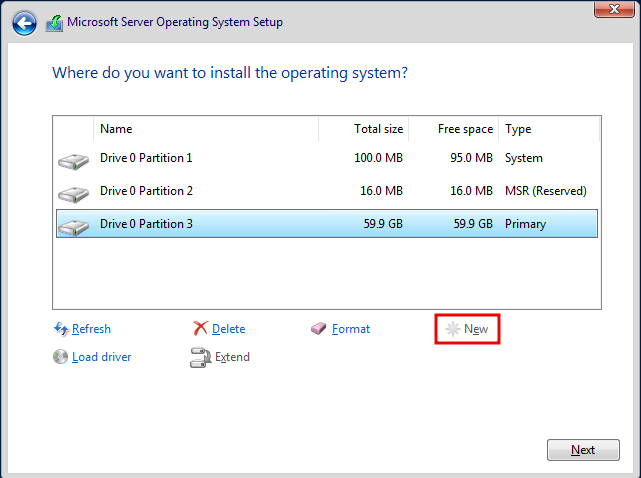
This is important. The Desktop Experience gives you a GUI, which is much easier to work with for a lab. Proceed through the installer using default settings until you reach disk selection. Select the available disk, click 'New', Apply, then continue.
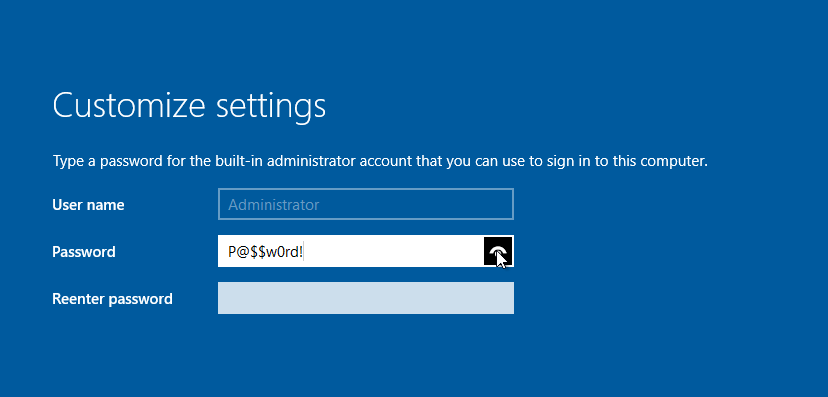
After installation completes, the system will reboot. You will be asked to create a password for the built-in admin account to sign in on the computer. This can be anything, just make sure you remember it or write it down somewhere (just for this lab, this is not good advice for actual user accounts). A strong password should contain, at minimum:
- 8 characters
- 1 uppercase letter
- 1 lowercase letter
- 1 number
- 1 special character
Creating the Client Machines (MS01 and MS02)
The process for both client machines is nearly identical, so we will move a bit faster here. Create a new VM using the same steps as before, but with the following changes:
For MS01 and MS02:
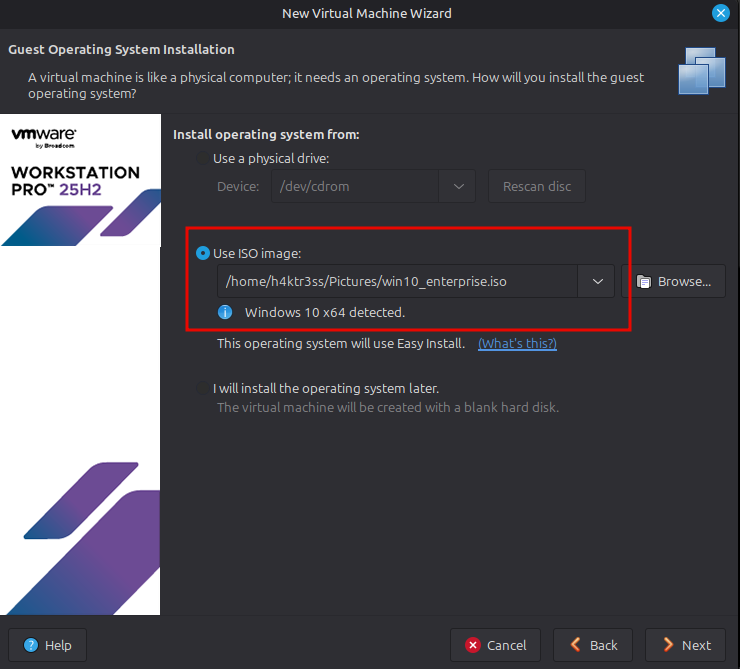
- Operating System: Windows 10 Enterprise ISO
- Name: MS01 (repeat later as MS02)
- Disk Size: 40 GB
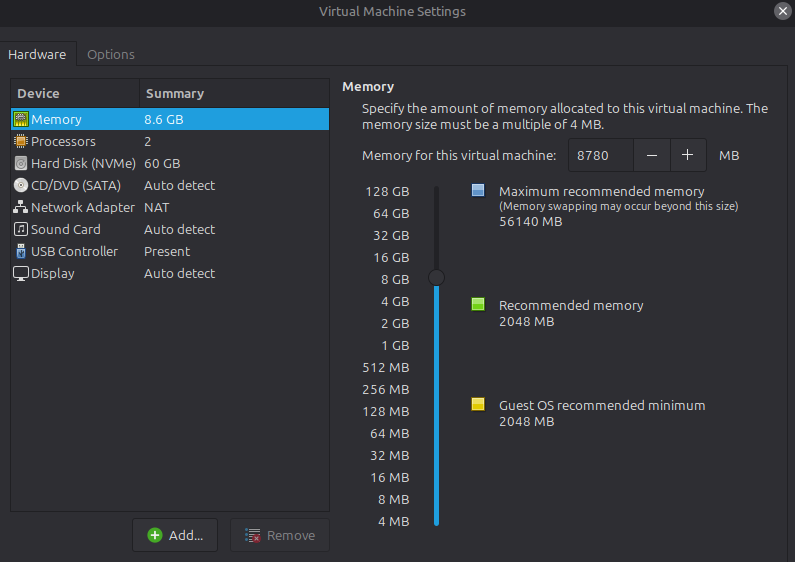
- Memory: 2–4 GB (I used 8 because I have a lot of RAM. Adjust your settings as needed)
- CPU: 2 cores
Repeat this process twice so you end up with:
- MS01
- MS02
Installing Windows 10 Enterprise
Boot each client VM and begin installation. Select language and keyboard layout like before, then proceed through the installation. When prompted, choose Windows 10 Enterprise and complete the installation using default options. For more details, refer back to the "Installing Windows Server 2022" section above. If you are having trouble booting the machine, check your VM Settings and ensure that the "Floppy - Using autoinst.flp" option is deleted.
After installation, complete the initial setup (username, password, privacy settings). At this point, you should have:
- DC01 running Windows Server 2022
- MS01 running Windows 10 Enterprise
- MS02 running Windows 10 Enterprise
All three machines should boot successfully and allow you to log in. If something is not working here, fix it now before moving forward. It is much easier to troubleshoot at this stage than later when Active Directory is involved.
Initial Configuration (Networking and Basics)
This is one of the most important parts of the entire lab. If networking is not configured correctly, domain joins will fail, DNS will break, and nothing will behave the way you expect. Taking a few minutes to set this up properly will save you a lot of frustration later. For this lab, all machines need to be able to communicate with each other on an internal network. We will use NAT networking within VMware Workstation Pro, which will allow all VMs to communicate with each other, internet access for updates and tools, and isolation from your host network
Renaming the Machines
Clear naming makes everything easier to follow later. You can make these literally anything you like, so long as the DC and the workstations are clearly differentiated. I don't know about you, but I have been practically obsessed with the new Interview with the Vampire series. As a long time fan of the Anne Rice books, this is a series I have wanted to see serialized for decades, and it was well worth the wait. With that in mind, I will be using Interview with the Vampire based names. You can use whatever you like. The 'Practical Ethical Hacking' course offered by TCM Security uses Marvel themed names, for example.
The instructions below are using the names I've chosen. If you choose different names, it may be helpful to mentally map each of your machines to mine to avoid confusion.
-
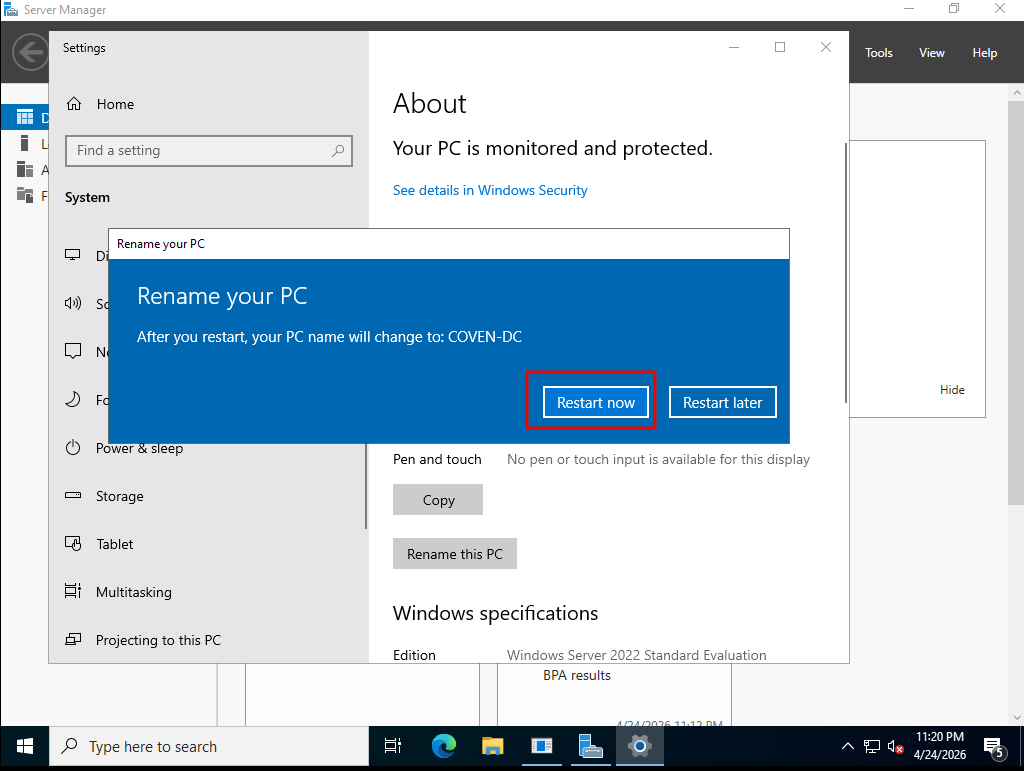
DC01: Rename to COVEN-DC
-
MS01: Rename to New-Orleans
-
MS02: Rename to Paris
To rename a machine:
- Open System Properties
- Click About on the left side
- Click Rename this PC
- Enter the new PC name and press Next
- Restart when prompted
Assigning a Static IP to DC01
The domain controller should always have a static IP. Other machines will rely on it for DNS. You can choose any IP you like, just make sure they are all on the same subnet. For this lab setup, I just opened a command prompt, entered the ipconfig command, and used those values.
On DC01:
- Open Control Panel → Network and Sharing Center
- Click Change adapter settings
- Right-click your network adapter → Properties
- Select Internet Protocol Version 4 (IPv4) → Properties
Set:
- IP Address: 172.16.36.139
- Subnet Mask: 255.255.255.0
- Default Gateway: 172.16.36.2 (or leave blank if unsure)
- Preferred DNS Server: 172.16.36.139 or 127.0.0.1
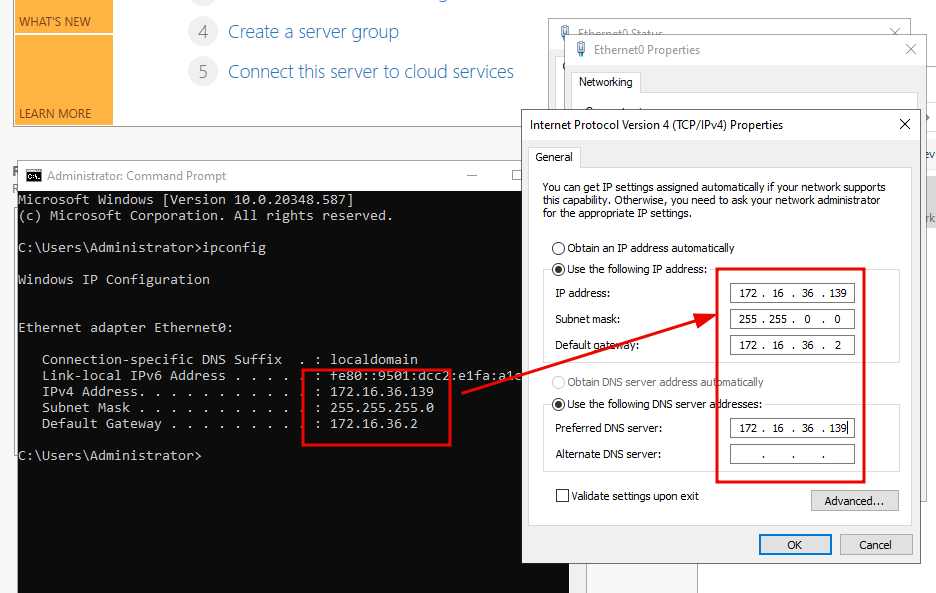
Click OK and close out.
Configuring DNS on Client Machines
To ensure our machines can reach one another, we need to point the DNS server address on the client machines to the DC IP address we just set. This will effectively create a small enterprise network for our VAMPIRE.local domain. To do this, follow the same steps as with the DC and set the following values. Make sure to put whatever IP you've set up for the DC in the "Preferred DNS server" spot on your client machines.
New Orleans:
- IP: 172.16.36.140
- Subnet Mask: 255.255.255.0
- Default Gateway: 172.16.36.2 (optional)
- Preferred DNS Server: 172.16.36.139
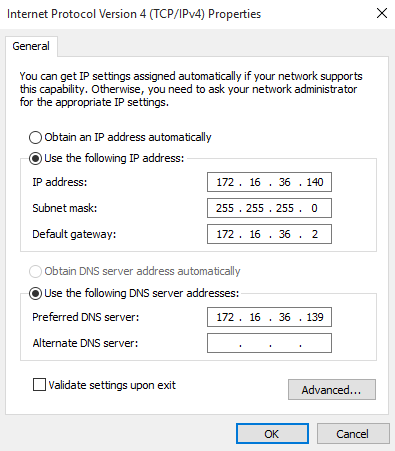
Paris:
- IP: 172.16.36.141
- Subnet Mask: 255.255.255.0
- Default Gateway: 172.16.36.2 (optional)
- Preferred DNS Server: 172.16.36.139
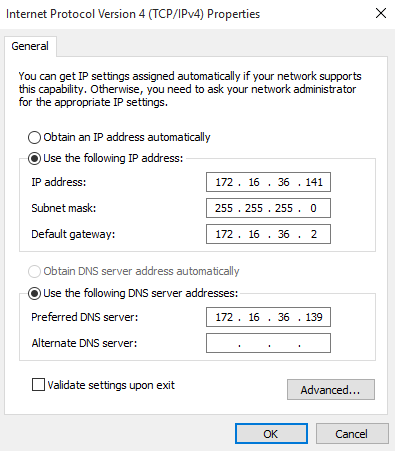
Note: The Preferred DNS Server address for both New-Orleans and Paris must point to the IP of the DC or we will not be able to join the client workstations to the domain.
Verifying Connectivity
Before moving forward, confirm that all machines can communicate. From New-Orleans and Paris, open Command Prompt and run:
> ping 172.16.36.139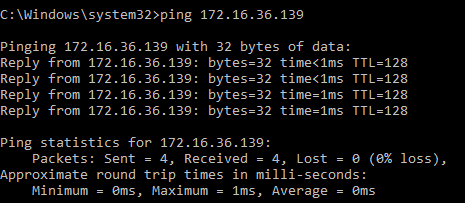
You should receive replies from your DC. You can also test the other workstation(s):
> ping 172.16.36.140
> ping 172.16.36.141
If pings fail, double check IP addresses and confirm all machines are on the same network adapter type. Temporarily disable Windows Firewall if needed
At this stage:
- All machines have unique IP addresses
- COVEN-DC has a static IP
- Clients are pointing to COVEN-DC for DNS
- Machines can ping each other
Setting up the Domain Controller
Now that your machines are built and networked correctly, you can turn COVEN-DC into the core of our environment. This is where we install Active Directory Domain Services (AD DS), promote the server to a domain controller, and set up some fun vulnerabilities and misconfigurations to exploit later.
Installing Active Directory Domain Services
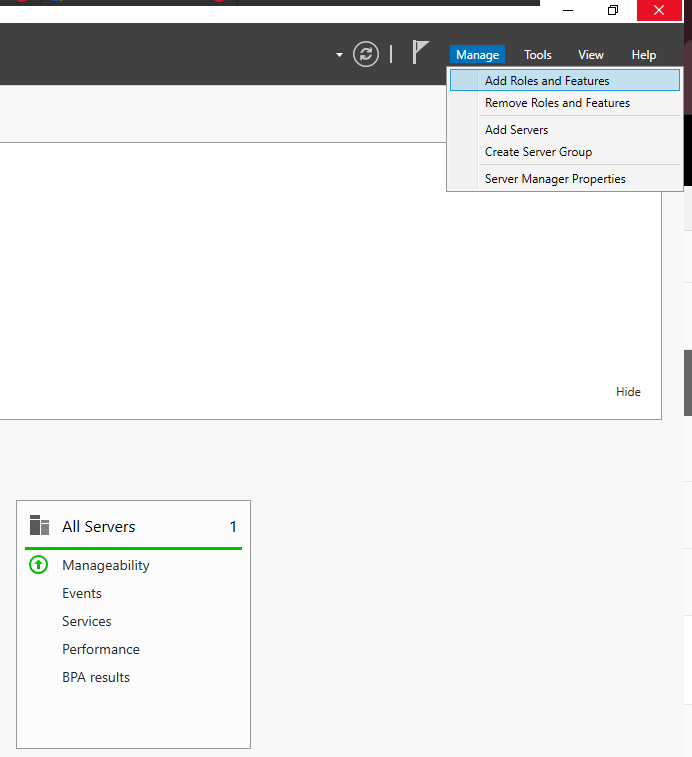
In order to promote COVEN-DC from a regular server to an actual Domain Controller, we need to install Active Directory Domain Services. Open the Server Manager and click Manage → Add Roles and Features
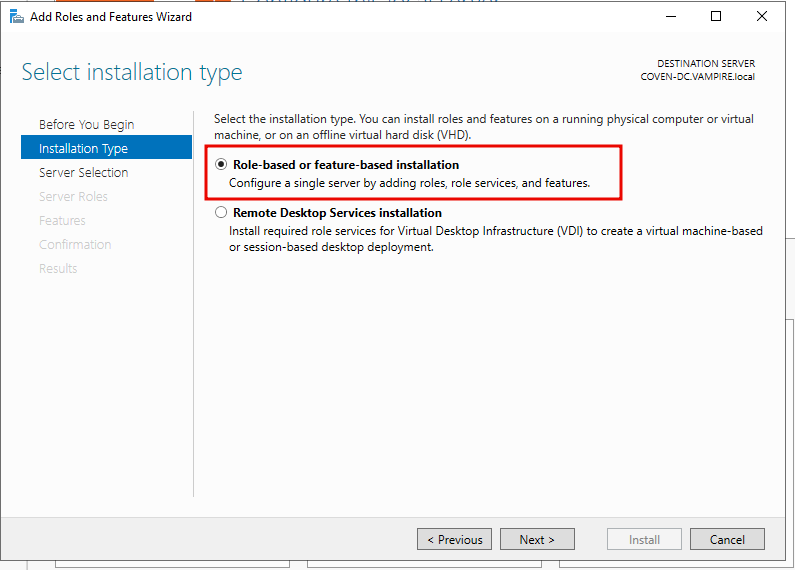
For the Installation Type, select Role-based or feature-based installation
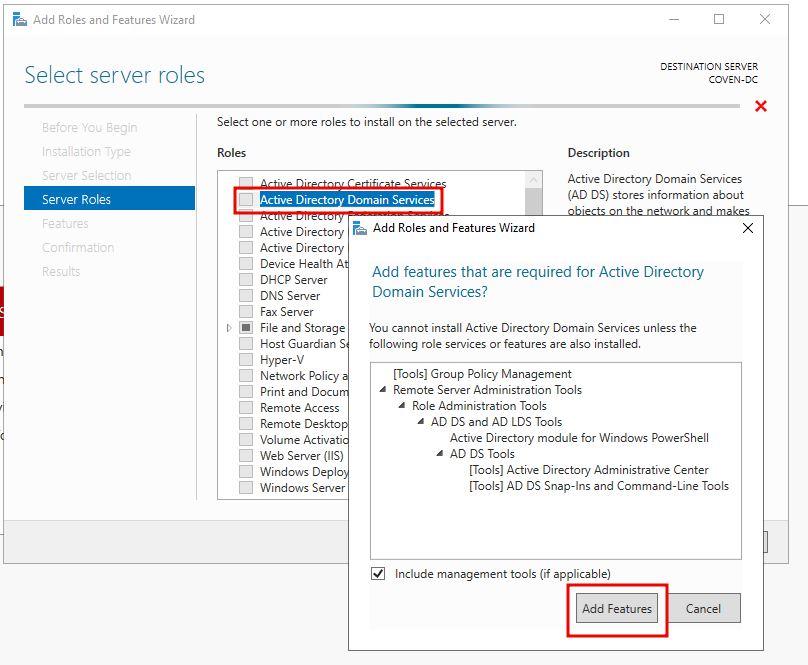
Select COVEN-DC (or whatever you've called your DC) on the Server Selection screen and hit Next. When you reach Server Roles, select Active Directory Domain Services. Go ahead and select the Add Features button on the window that pops up.
From here, you can just continue through the wizard using default settings and click Install. Once you reach the Confirmation screen, make sure you check the "Restart the destination server automatically if required" box and allow automatic restarts before you click install.
Promoting DC01 to a Domain Controller
Once everything finishes installing, you will reach a Results screen. This is where we actually promote COVEN-DC to a domain controller. Under Active Directory Domain Services, you will see an option to promote the server to a domain controller. Select that option.
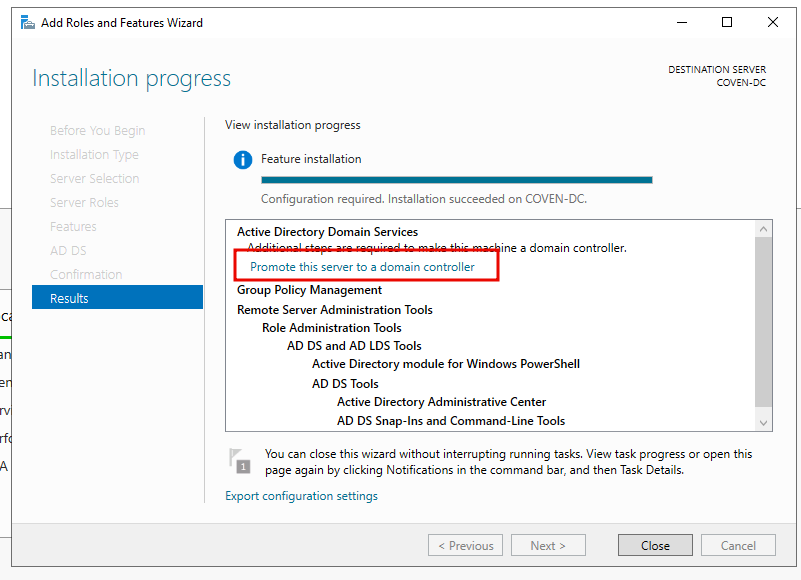
First, you need to add a new forest. For more information about forests in Active Directory, check out my Active Directory Overview journal entry. In the deployment configuration, select "Add a new forest" and enter your desired domain name. Keeping with our vampire theme, I'm going to use VAMPIRE.local. You don't need to add the .local, but I would recommend it. Once you've chosen a domain name, click Next and enter your domain admin password.
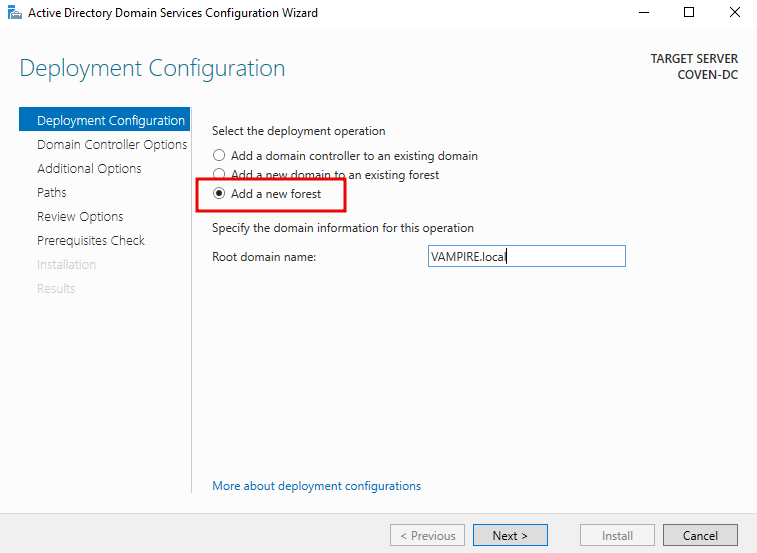
Continue through the wizard until you get to the Prerequisites Check. You do not need to change the default options unless you have a specific reason to change them. On some of the windows, like "Additional Option" and "Paths", you will need to wait a second for the text to auto populate.
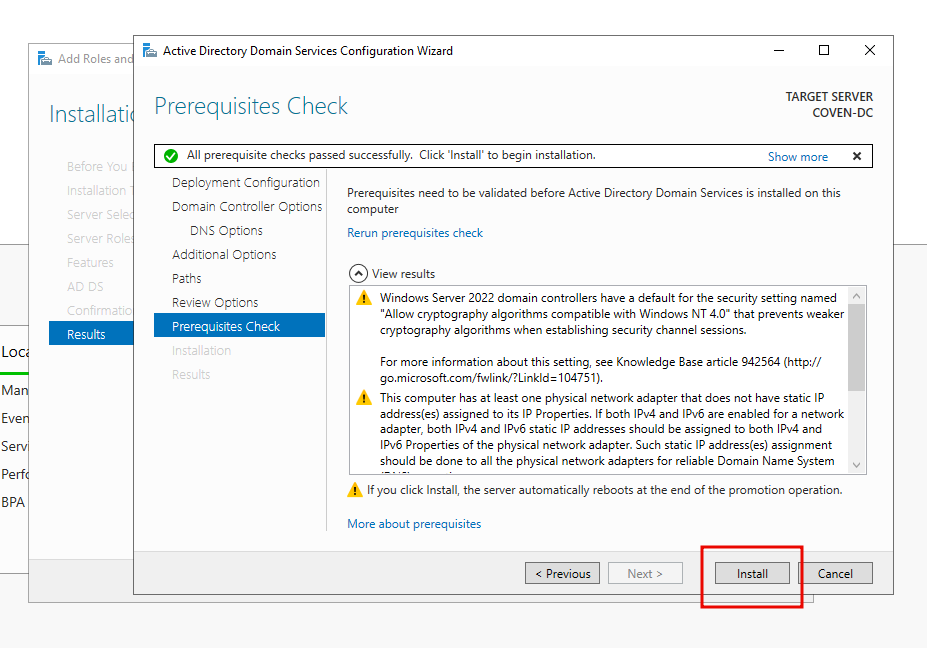
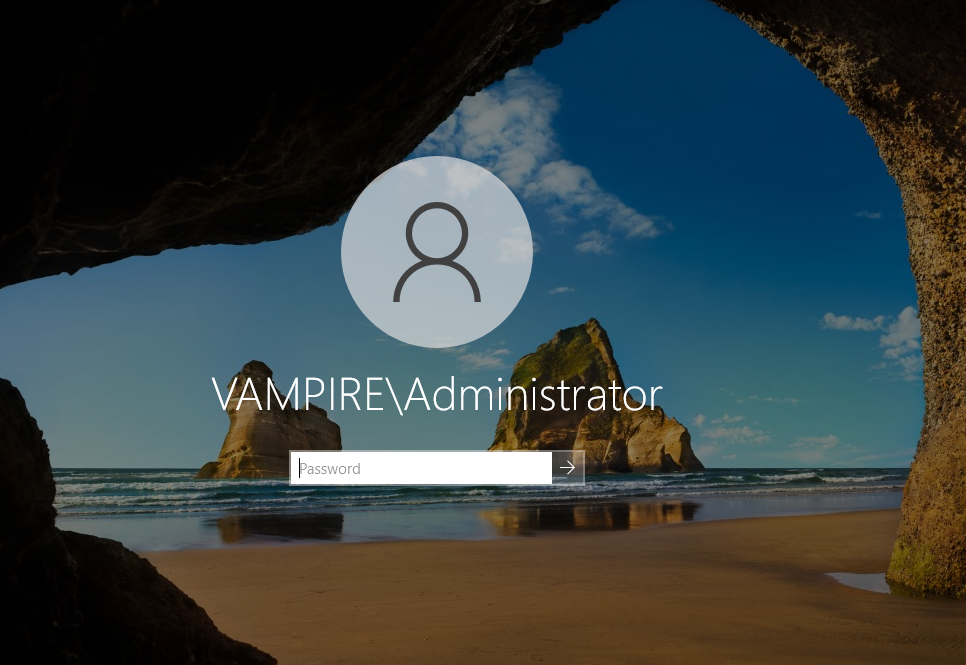
Once you pass the Prerequisites Check, click Install. The server will reboot automatically after promotion. Once the COVEN-DC machine reboots and you get to the login screen, you will notice that you are now logging into the Domain account, VAMPIRE\Administrator.
Installing Active Directory Certificate Services
There's one more thing we need to set up before we start adding users and joining the workstations to our domain. It isn't required, but it will be helpful to install Active Directory Certificate Services for some attacks later on. ADCS is a form of security that helps verify identities within the domain controller using LDAPS rather than LDAP. You can think of LDAP like the user directory or phone book.
Just like with Active Directory Domain Services, we are going to click Manage > Add roles and features > Role based feature > Active Directory Certificate Services > Add Features > Next > Next > Next. Make sure "Certification Authority" is checked on the "Role Services" screen, then finish the wizard like we did in the last section.
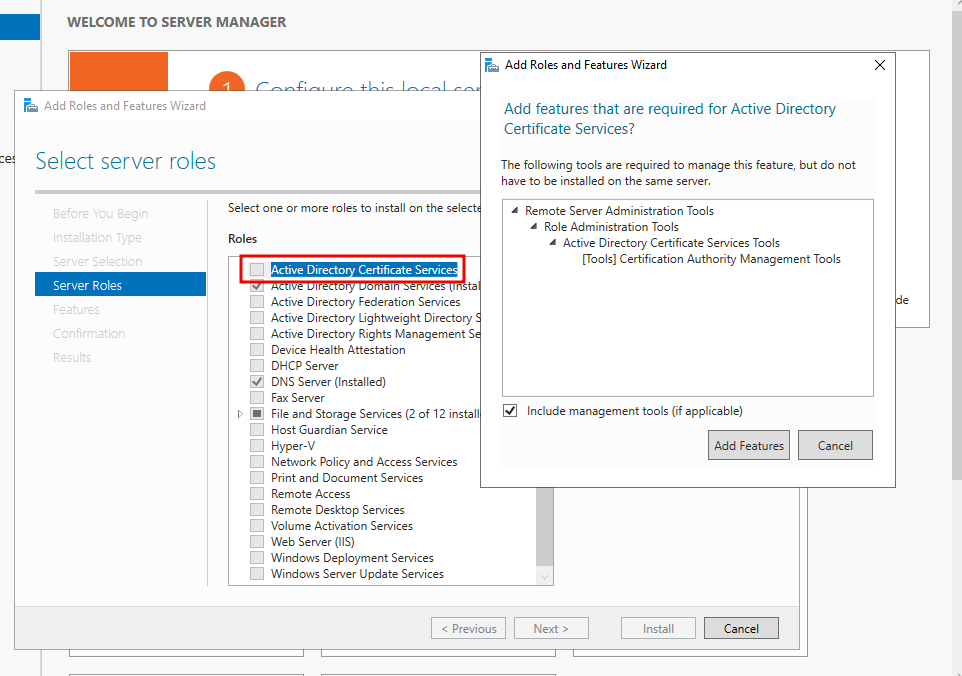
Once the installation is done, click "Configure Active Directory Certificate Services on the destination server."
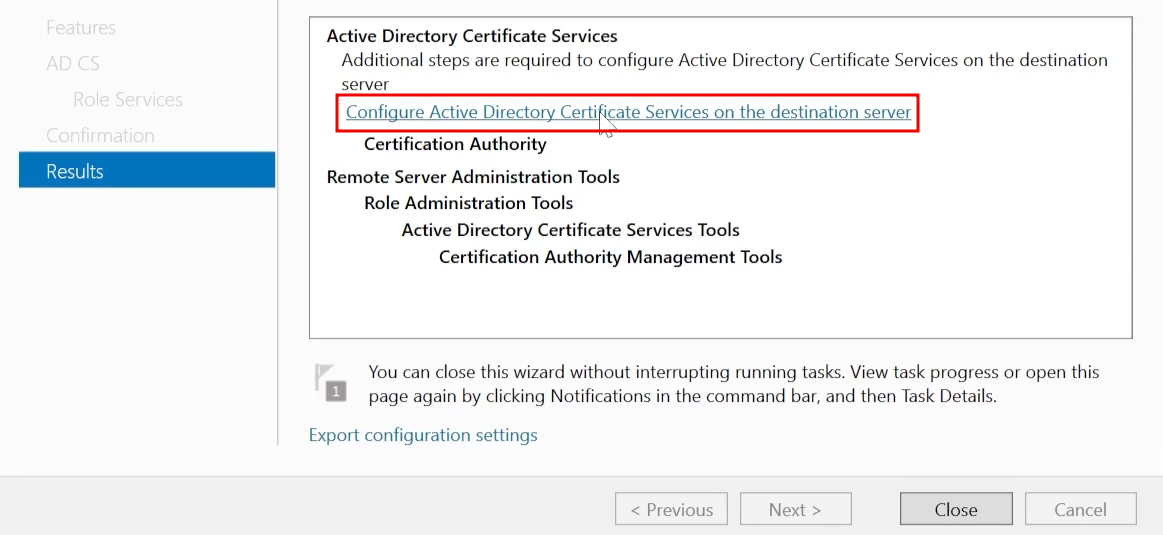
You can continue through this wizard using only default options. If you would like to have the lab for a longer time period, you can change the Validity Period to something like 99 years. Once you're finished, reboot your DC. If you've made it this far, congratulations! Youv'e finished setting up your domain controller! That is a huge first step. In the next sections, we will work on setting up our workstations and joining them to the domain.
Setting up Users, Groups, and Policies
This is the part where we start adding users and computers to the domain, creating groups, and setting up group policies. Lets jump right into it!
Once you boot up your DC and log in, you should be back at the Server Manager dashboard. In the top right, select Tools > Active Directory Users and Computers.
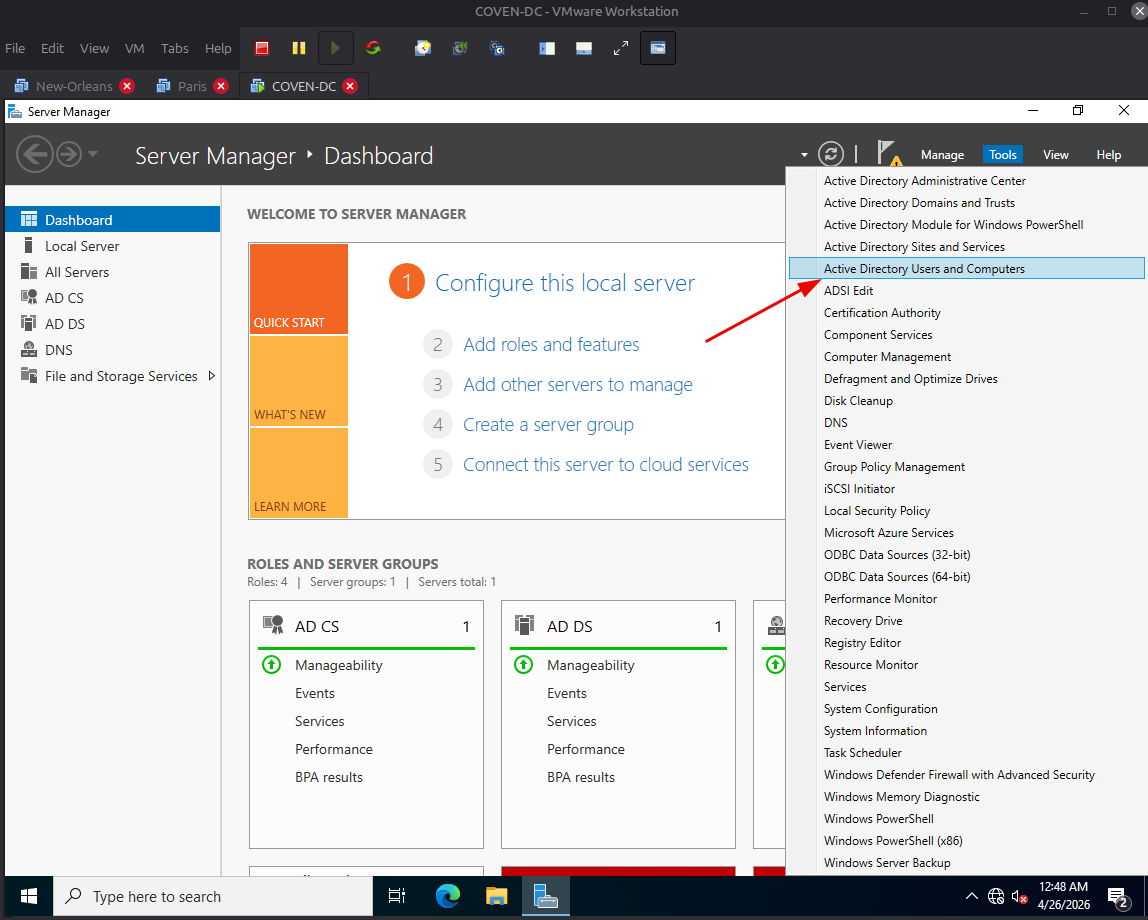
Here is where you can see all of your users, computers, groups, policies, and any other OUs in your domain. If you click on Users on the left, you can see your local Administrator users as well as a bunch of groups, which looks kind of messy. To keep things a bit more organized, lets clean that up a bit. Right click on your domain name on the left and go to New > Organizational Unit
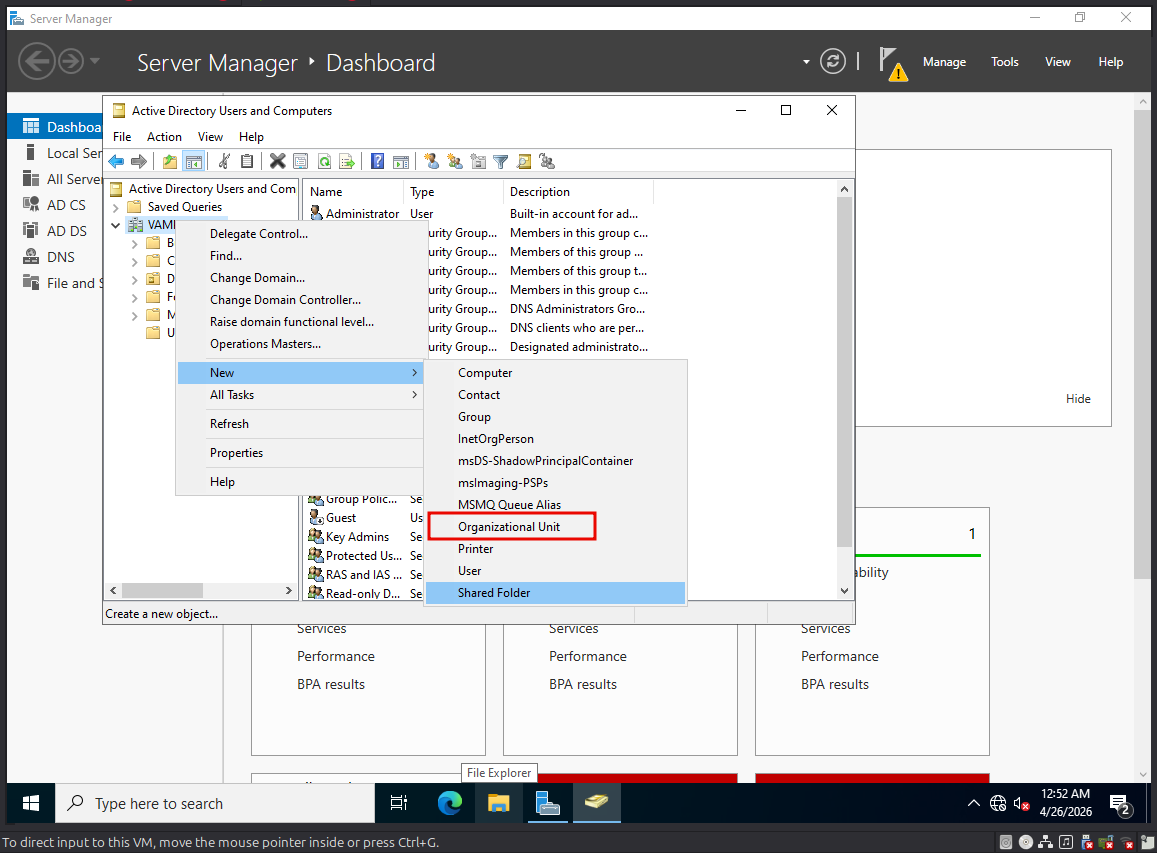
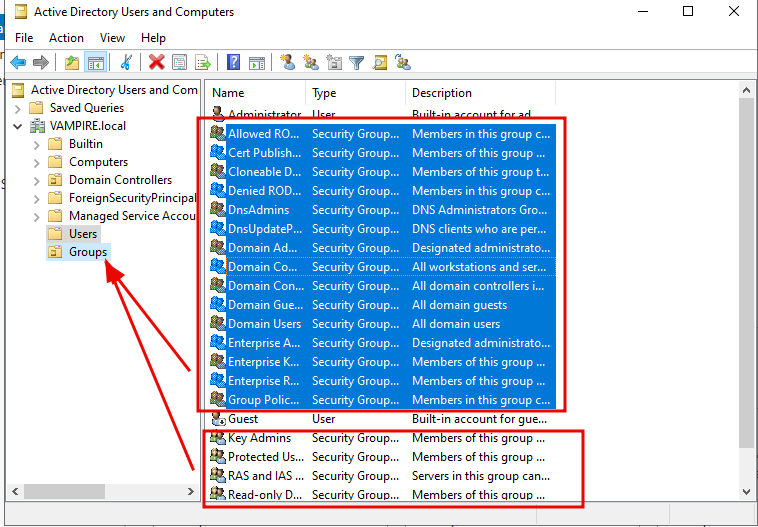
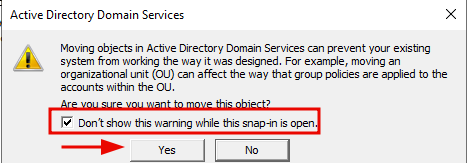
We are going to appropriately name this OU "Groups", and it is going to hold all of our local groups so we don't have to look through them every time we look at the domain users. Once you create the OU, click on Users and select the groups. Select everything except the Administrator and Guest accounts and drag them into the "Groups" OU we just created. You will get a pop up asking if you are sure, in which you can check "don't ask again" and click Yes.
Creating Administrators and Service Accounts
In the Users window, we are going to set up a new domain admin. A common misconfiguration in Active Directory is domain users with local admin privileges. If we get access to that users, we can dump all of the NTLM hashes on the machine for which they are a local admin, which may include a domain admin or other privileged user account we can use for lateral movement or privilege escalation. First we will set up a domain admin user, then assign a normal domain user to the local administrators group.
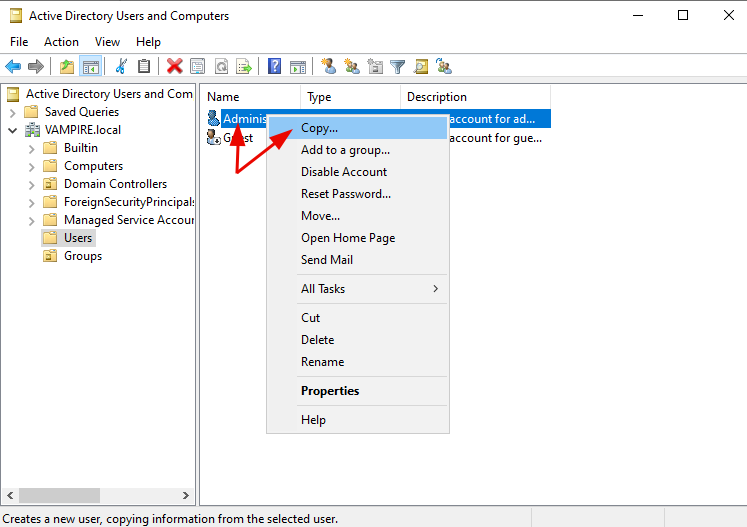
In the Users area, right click on the Administrator user and select Copy. This will create another local Administrator user with identical settings. Once we create the local Admin, we are going to assign it to a domain user.
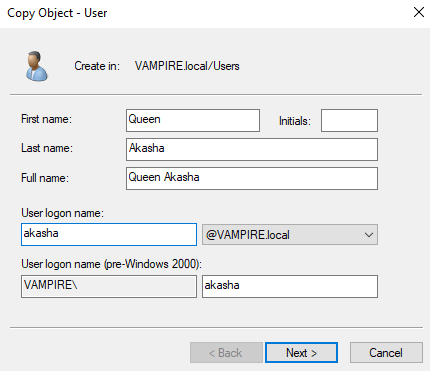
In the Copy Object window, we are going create a new user and decide on a name convention for our users going forward. Sticking with the Vampire Chronicles theme, who else would be the domain admin but the Queen of the Damned herself, Akasha.
Choose literally any password you'd like and make sure you select the "Password Never Expires" box.
Next we will create a service account. Service accounts are accounts that are used specifically to run a service, like MySQL or a web service. Another common misconfiguration is overly permissive service accounts, that is domain accounts used for a service that have local administrator privileges on a workstation. Repeat the steps you just did by right clicking Administrator and selecting Copy. THis time we are going to make a SQL Service account.
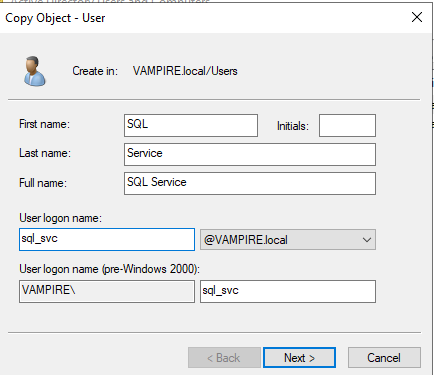
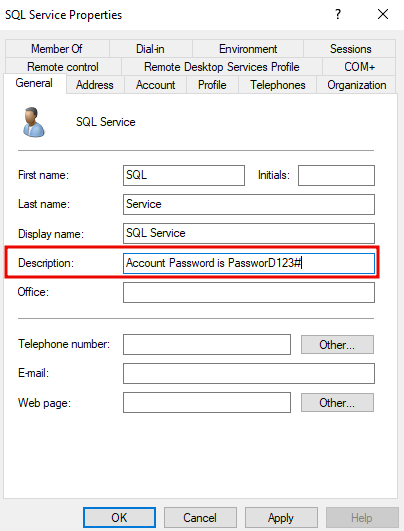
You can choose any password you like here, just make sure you remember it. Once we create this service account, we are going to set up another misconfiguration for later, which is plain text passwords in user descriptions. Double click on the service account and type the password in the "Description" field.
Creating Low Level Users
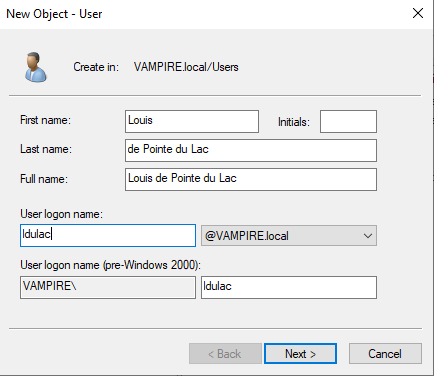
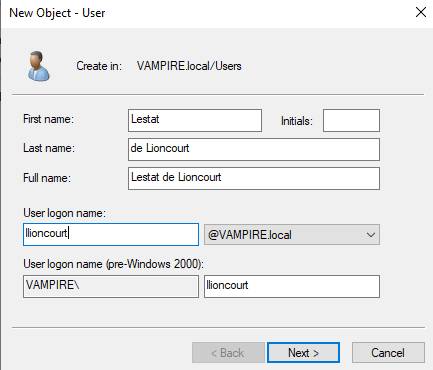
Lets create some regular, low level domain users. Still in the Users windows, rick click the white space and select New > User. Create a user here the same way you did with the service account before and make sure you check "Password Never Expires". We are going to set up two users here. Who else would we add to our lovely vampire domain than Louis de Pointe du Lac and the Vampire Lestat de Lioncourt.
Creating a File Share
Many enterprise networks will use a local intranet or folder to house things like employee training manuals or common documents used across multiple sites or machines. These are called file shares. File shares use the SMB protocol, and they are a common attack vector fo gaining a foothold or lateral movement. Some IT help desk file shares will have backups of all user data, including NTLM hashes. File shares can be an absolute gold mine for enumeration and lateral movement.
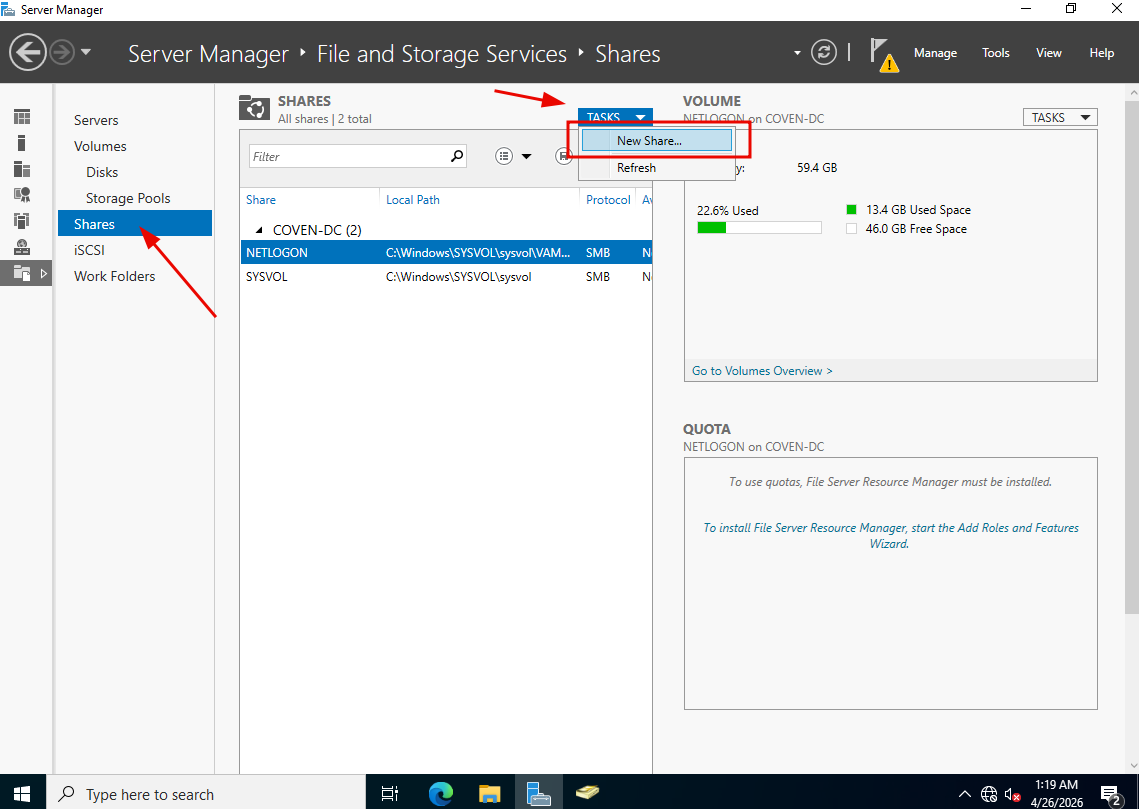
In the Server Manager, select File and Storage Services on the left hand side.
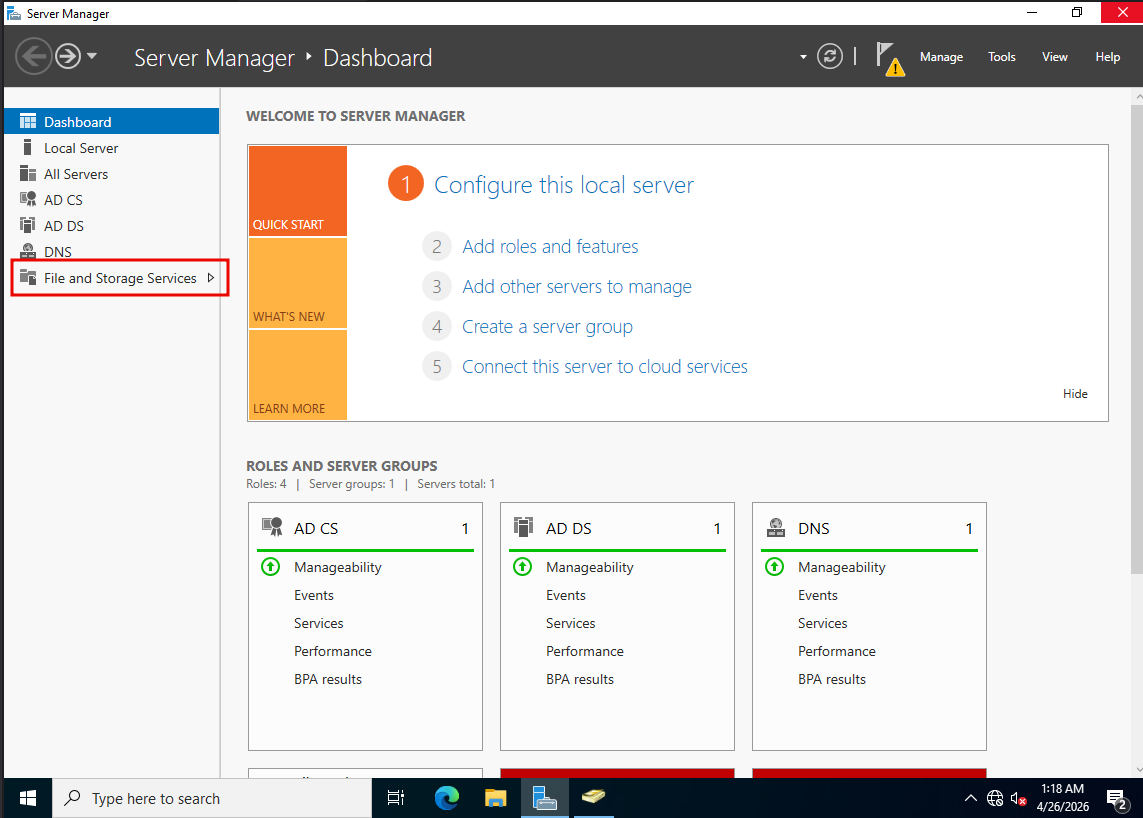
Click Shares, then select the TASKS dropdown menu at the top of the list of file shares and choose New Share.
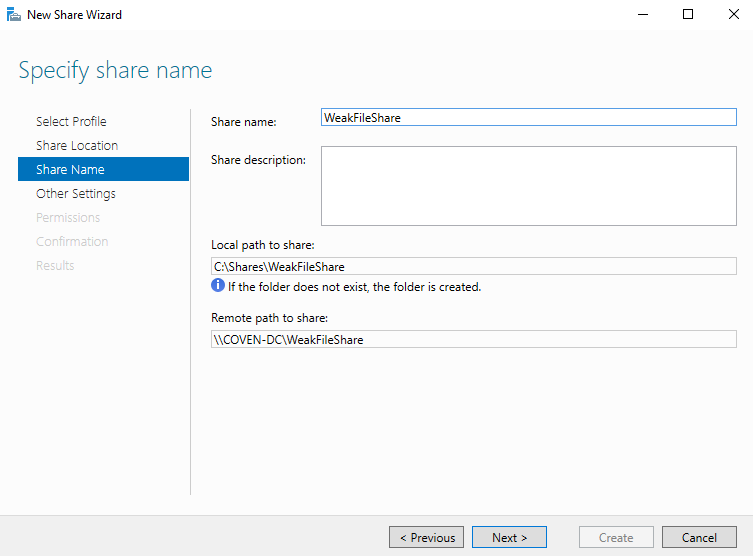
Click through the wizard until you reach the Share Name screen. Choose any name you like and continue through the menu.
Finishing Service Account Setup
Open an administrator command prompt by selecting Start, typing "cmd", then right click and select "Run As Administrator." Type the following:
C\Users\Administrator> setspn -a COVEN-DC/sql_svc.VAMPIRE.local:66666 VAMPIRE\sql_svc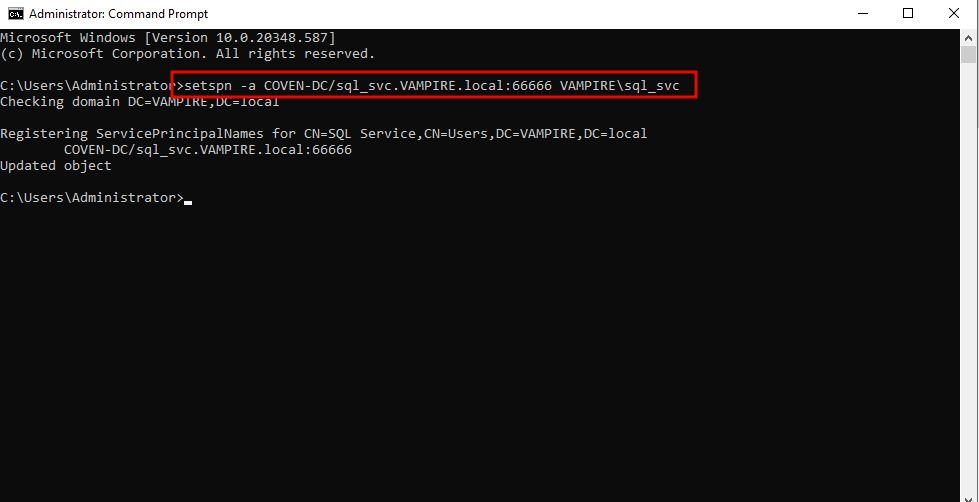
Setting up a Group Policy
A Group Policy is a centralized set of rules and settings that administrators use to manage users, computers, permissions, security settings, scripts, software deployment, and other configurations across a Windows domain. Organizations use Group Policy because it makes it easier to apply consistent settings at scale instead of configuring each machine or user account individually. In an attack path context, understanding Group Policy is important because misconfigured or overly permissive policies can give attackers a way to escalate privileges, move laterally, or gain control over domain resources.
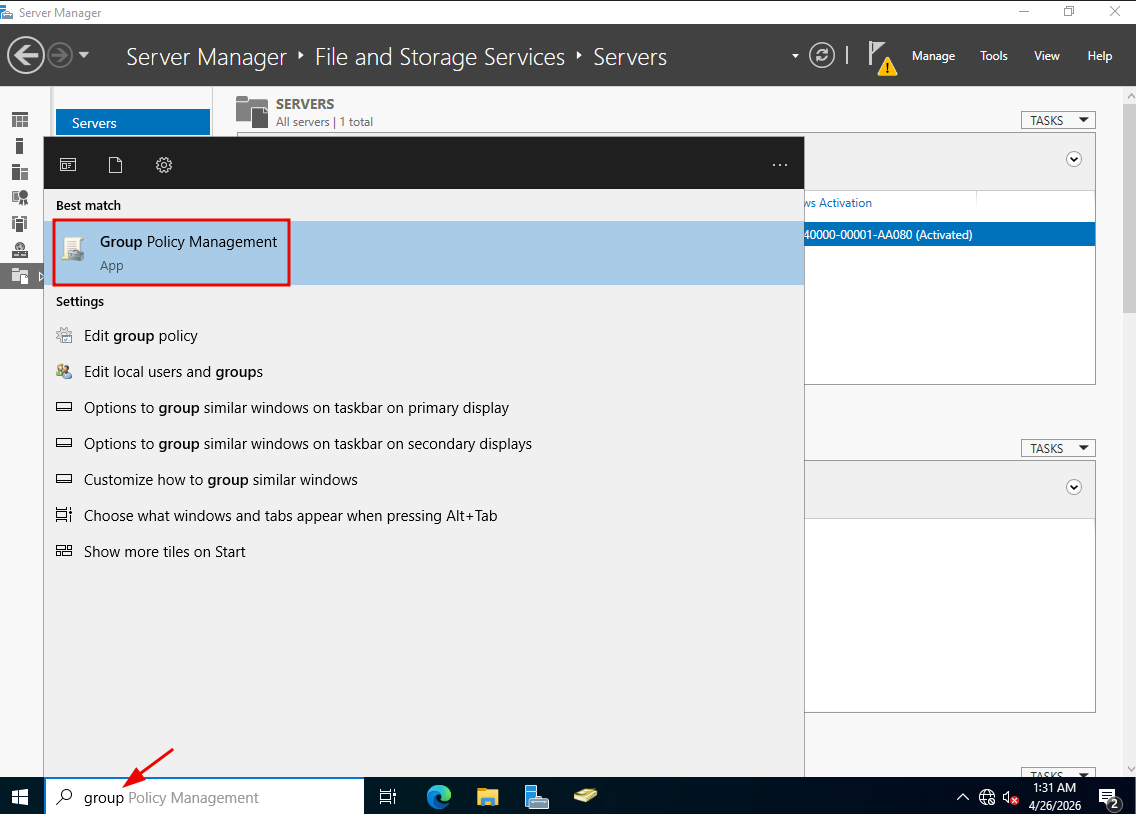
The last thing we need to set up before joining the domain is some group policies. On the COVEN-DC machine, click the Start menu, type "group", and open Group Policy Management when it appears.
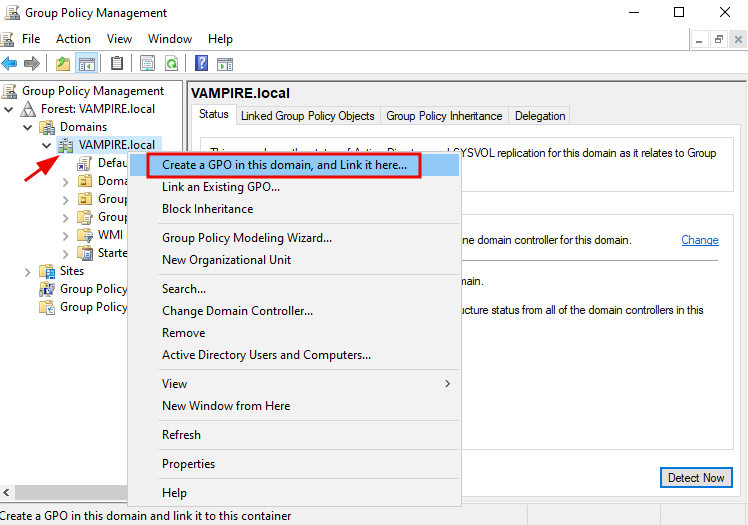
In the Group Policy Management window, you will see our forest and domain, VAMPIRE.local. Expand the Domains menu on the left, right click on VAMPIRE.local, and click "Create a GPO in this domain." We are going to call this GPO "Disable Windows Defender."
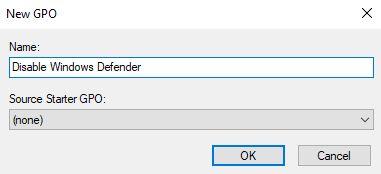
The GPO will show up in the left panel under your domain. When you click on the new GPO, a pop up will appear. You can just hit okay. Right click the "Disable Windows Defender" GPO and select Edit. What we are doing here is creating a policy that will disable Windows Defender on all domain workstations. That will make future attacks a lot less annoying until you get into A/V evasion.
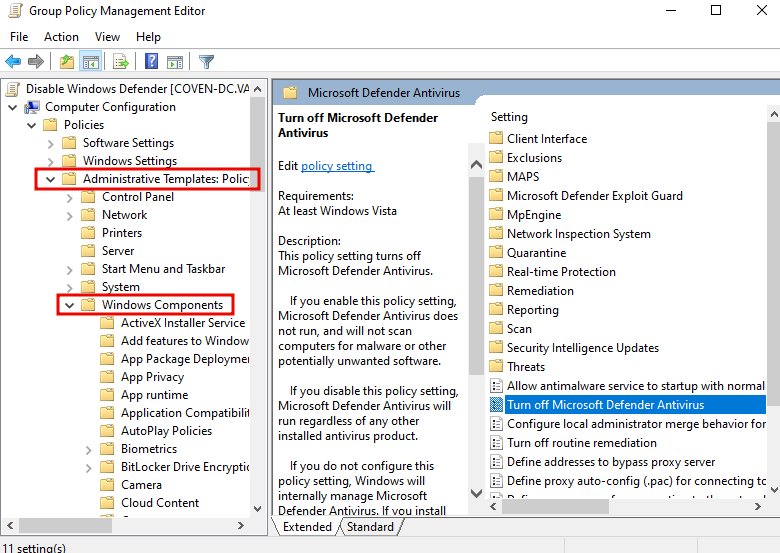
In the Group Policy Management Editor left panel, go to Policies > Administrative Templates > Windows Components > Microsoft Defender Antivirus (or Windows Defender Antivirus). In the right panel, double click "Turn off Microsoft Defender Antivirus."
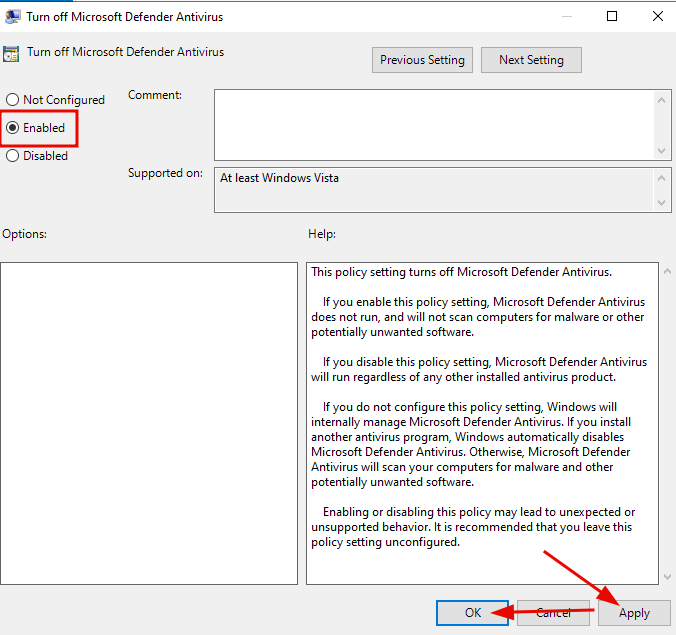
In the window that pops up, select the "Enabled" radio button, click Apply, then OK.
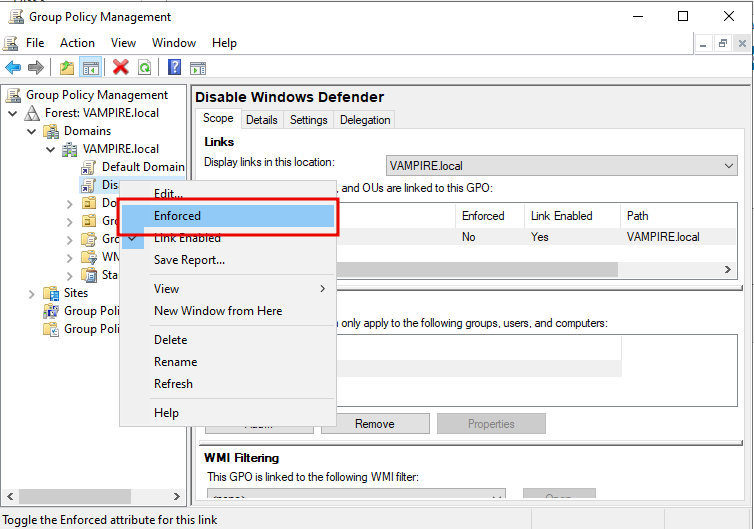
Close the Management Editor, right click the policy, and select "Enforce". This will disable Windows Defender on all domain joined machines.
Joining Machines to the Domain
We are almost ready to go. Everything is set up and configured with the domain, so the last step is to actually join our NEW-ORLEANS and PARIS workstations to the domain. Lets jump right into it.
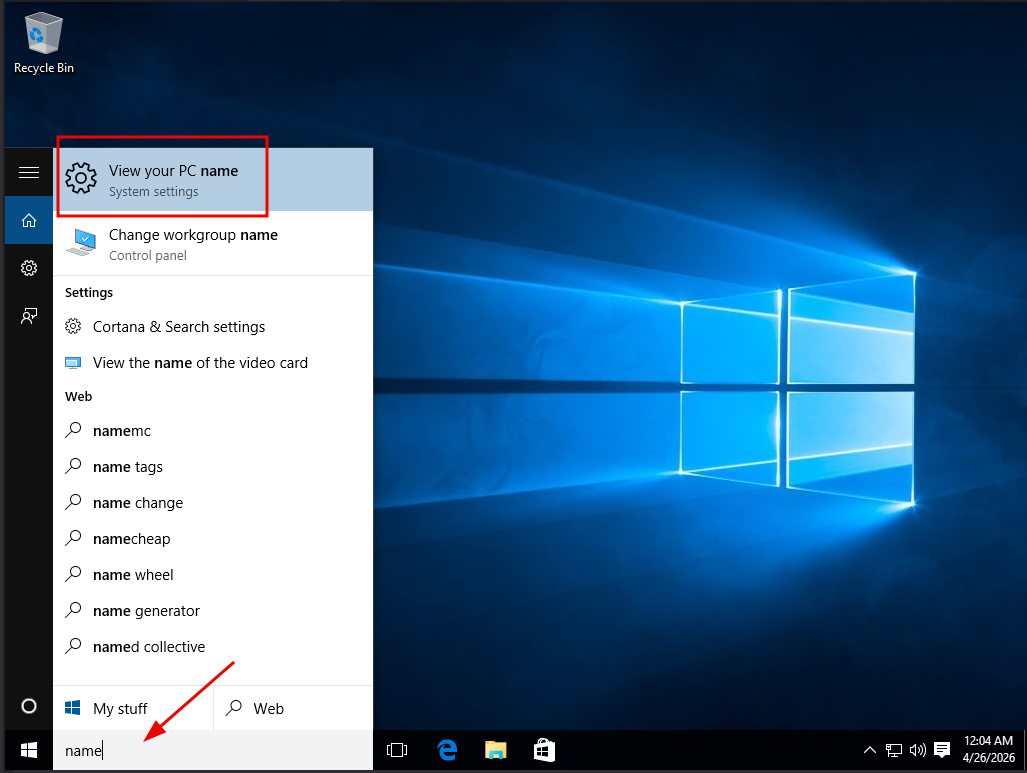
First, lets log into our NEWORLEANS machine. We are going to follow the same steps we did to change the PC name, but instead of clicking "Rename PC", we are going to click "Join a domain".
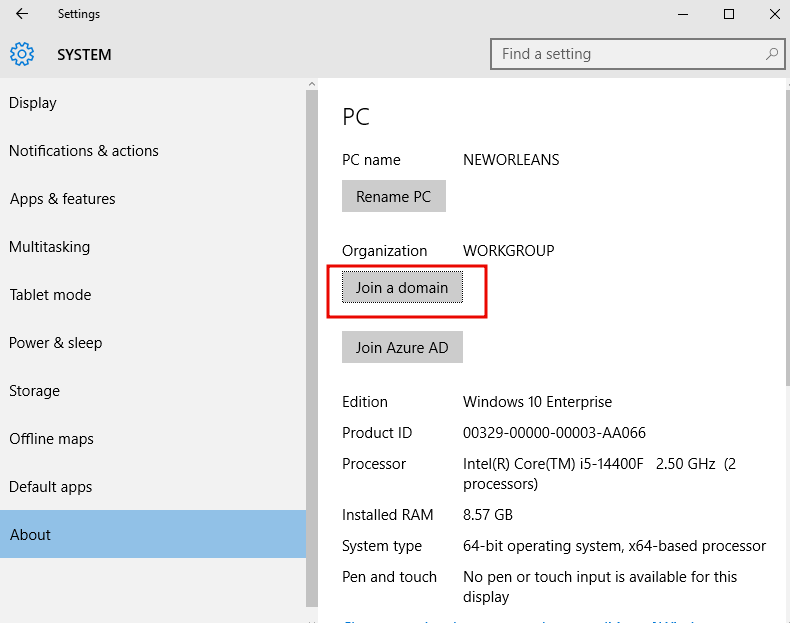
In the pop-up box, type the name you chose for the domain. In our case that is VAMPIRE.local. You will be prompted for your username and password, which is a good thing as it means the machine found the domain. Make sure you enter the domain administrator password you set and have been using.
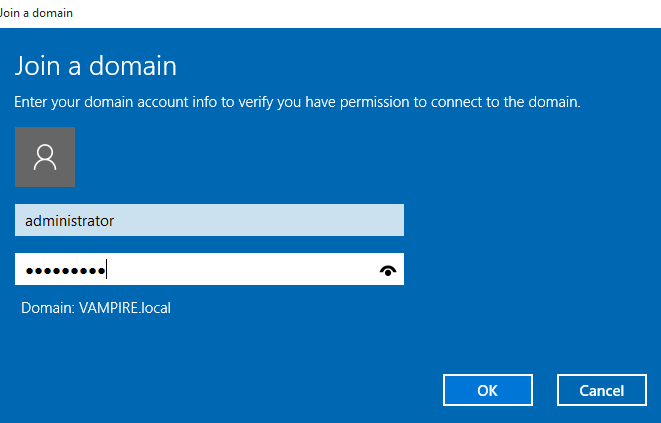
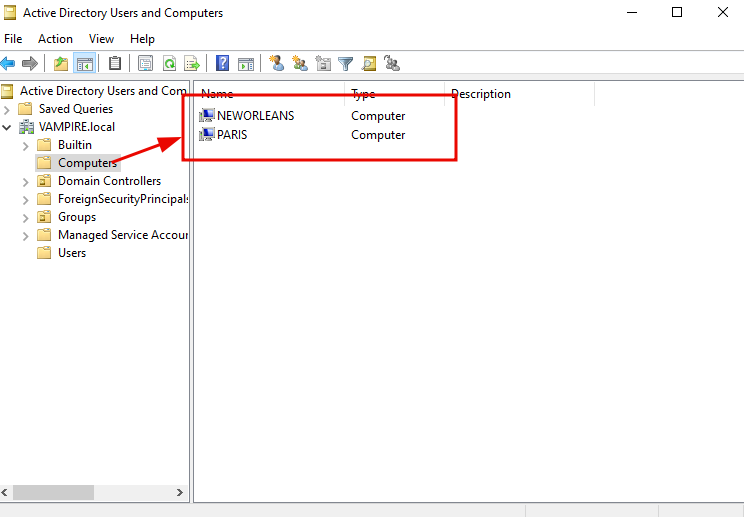
Repeat this step on both NEWORLEANS and PARIS machines. To confirm that the machines connected properly, we can log into the domain controller and check the Active Directory Users and Computers option. In the left side panel under VAMPIRE.local, click on the Computers option and you should see both machines listed.
Final Thoughts
At this point, you have moved beyond theory. You now have a working Active Directory environment that you built yourself. That matters.
Prebuilt labs teach you techniques, but building your own lab teaches you how systems actually fit together. That difference shows up very quickly when you start troubleshooting, attacking, or trying to explain what is happening under the hood.
From here, you can:
- Break things intentionally
- Practice specific attack paths
- Rebuild from scratch when something goes wrong
That loop of build, break, and rebuild is where real skill develops. If you have made it this far, you have a fully self contained labortatory environment to break and rebuild as you see fit. Setting up the lab is a bit tedious, but once you have everything set up, thats when the real fun begins.
If you want to keep going, I wouild suggest checking out HackTheBox Academy. The CPTS learning path starts from the beginning with Footprinting all the way to Attacking Enterprise Networks.
The only way to learn is by doing the thing. With a fully vulnerable Active Directory lab setup at your fingertips and the accomplishment of building one fresh in your mind, go break stuff.
Happy hacking.